
I have been exporting my conversations from artificial intelligence into my Obsidian vault since August 2024.
In this manner, I have a copy of every conversation for my own records and they no longer exist purely on the AI provider’s server. Every week or two, I delete all my chats and start with a fresh slate.
That being said, the memories formed during the chats remain, even though the chats have been deleted. So don’t feel like you are literally throwing everything away that you have worked on.
What is Obsidian?
I discovered Obsidian from a YouTube video called The FUN and EFFICIENT note-taking system I use in my PhD by morganeua. In the video, she also outlines the basis of the zettelkasten system as recently repopularized by the book, How to Take Smart Notes by Sonke Ahrens.
My favorite feature of Obsidian is that all folders and files can be viewed not only with the Obsidian software but also with any text editor (TextEdit, Notepad, even VS Code). Your notes are stored as markdown files with the extension .md
Below you can see an example. Markdown is simple to learn – here is an easy Basic Syntax guide to start with.
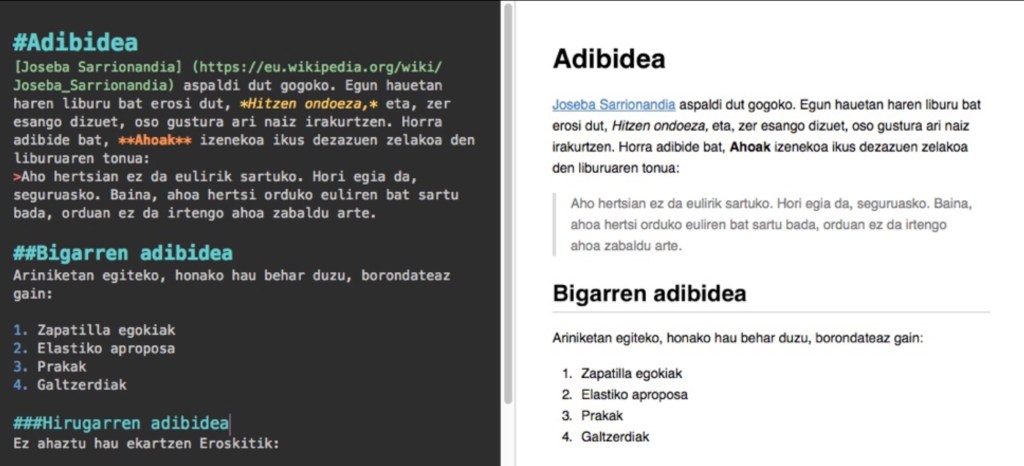
Previous to Obsidian, I tried other notetaking software like Notion, GoodNotes, Apple Notes, Evernote, etc. While Notion is beautiful and sophisticated and GoodNotes is great for handwritten notes, I encountered syncing issues with both of them.
Furthermore, I felt a constant sense of unease that my notes were being held away from me in their corporate cloud and at any time, the rug could be pulled out from under me.
The beauty of Obsidian is its simplicity and their gift of autonomy. You are not dependent on the software interface to access and edit your notes.
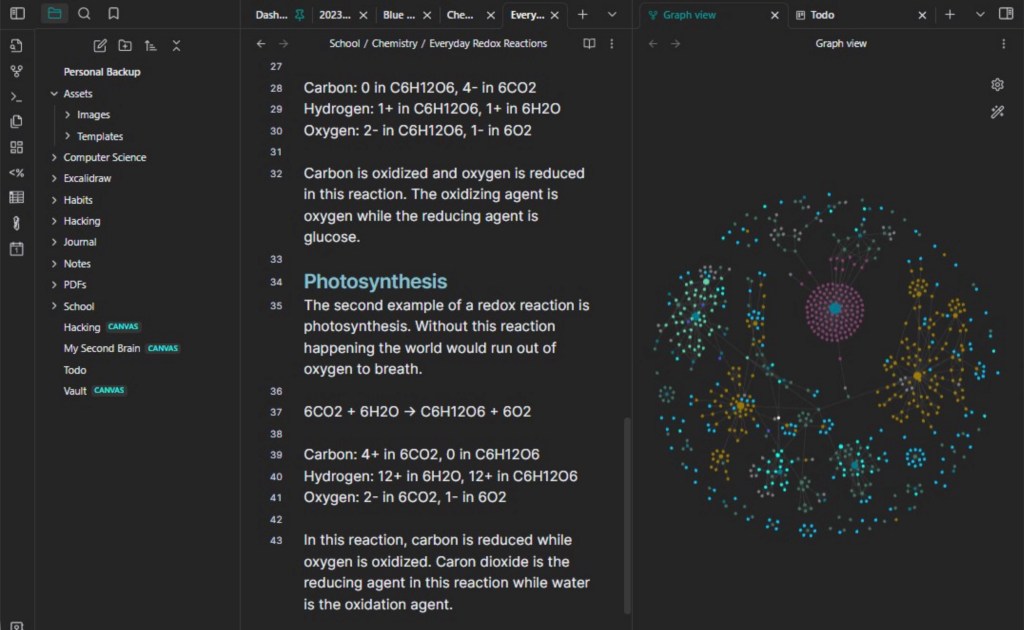
When you do use the Obsidian software, it is elegant to work with and their signature Graph View is enough to pique anyone’s interest (see image below).
Obsidian has also added a couple of amazing core plugins in the time I have been using it, since February 2024. Web Viewer that turns Obsidian into a web browser and blocks ads by default. Bases that can help you sort and filter your notes with great efficacy, similar to Notion databases.
The Obsidian Help website is extremely clear and easy to follow. If you still have questions, there are many great YouTubers devoted to sharing Obsidian tips and tricks, such as Nicole van der Hoeven and Nick Milo. I have learned a great deal from them.
Now that you know why I love it, here’s the workflow I’ve settled into.
Export from ChatGPT and Claude
Step 1. Export Data
For both ChatGPT and Claude, the first step is to go to the settings in the bottom left corner on a web browser. On ChatGPT, click on Data Controls. On Claude, click on Privacy. (For Claude, you can also go directly to the url https://claude.ai/settings/data-privacy-controls)
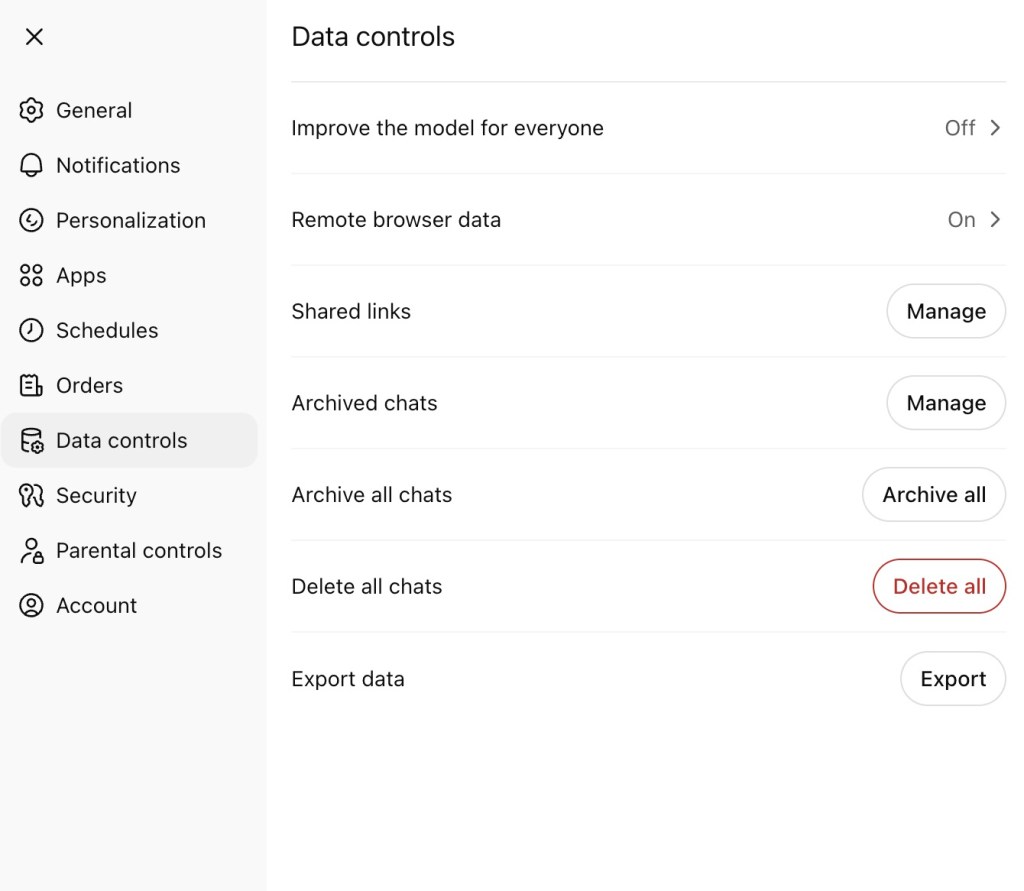
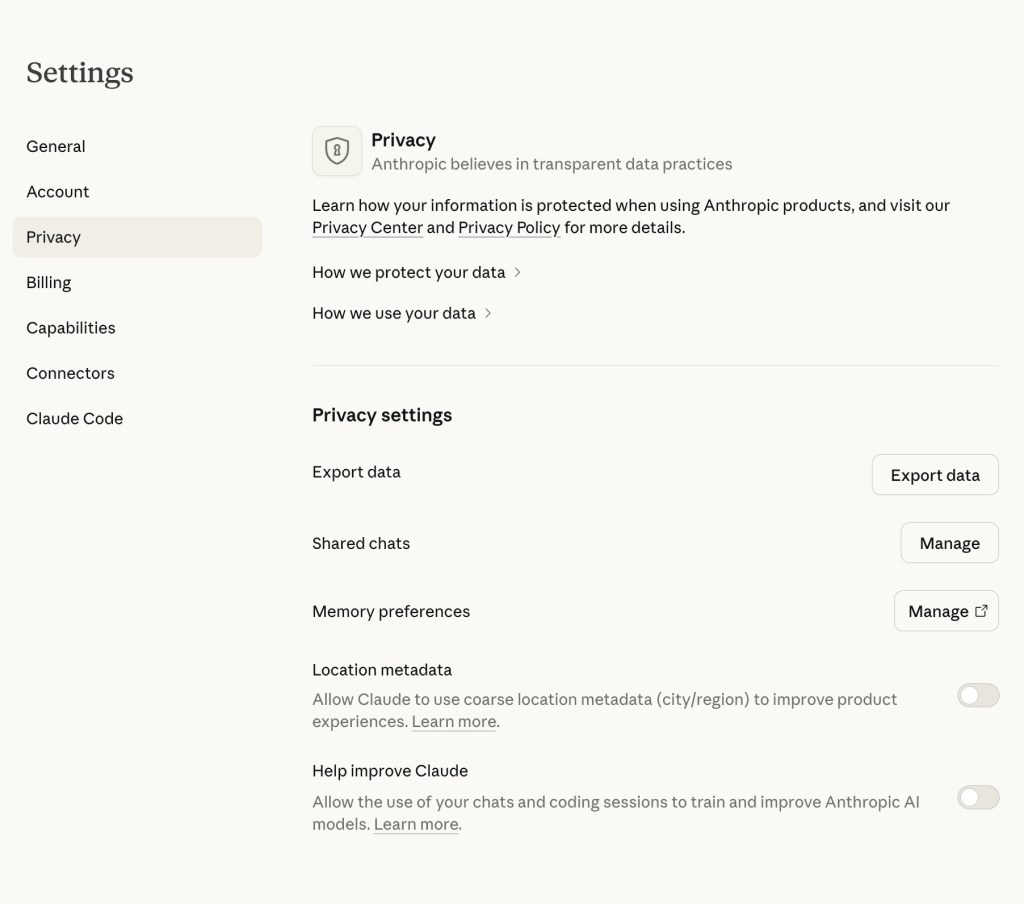
Click “Export Data”
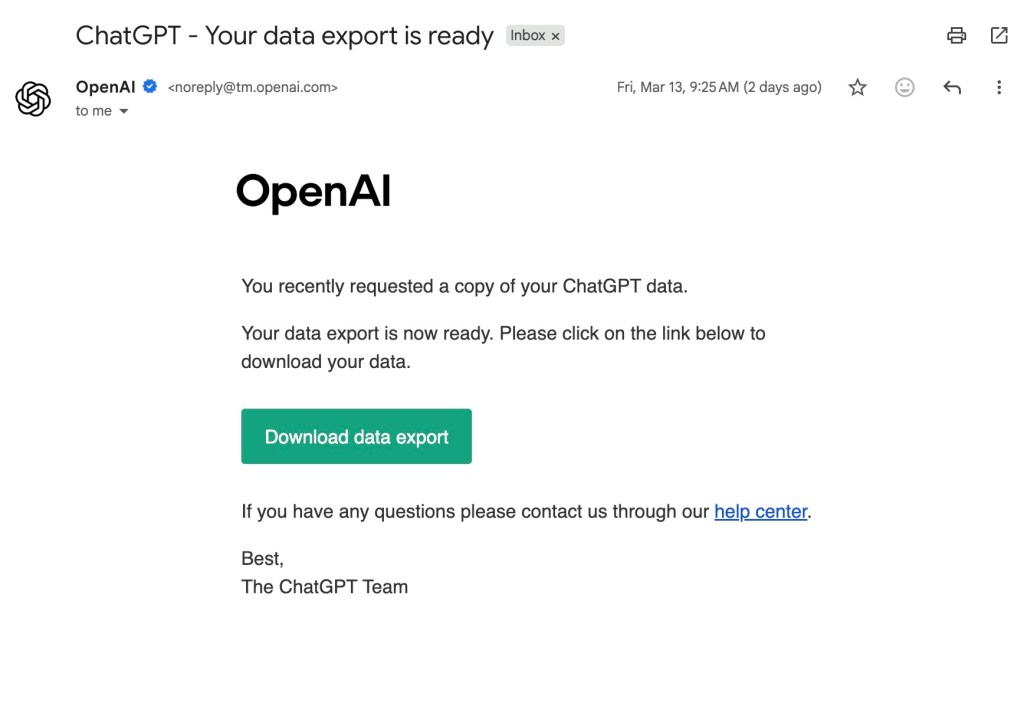
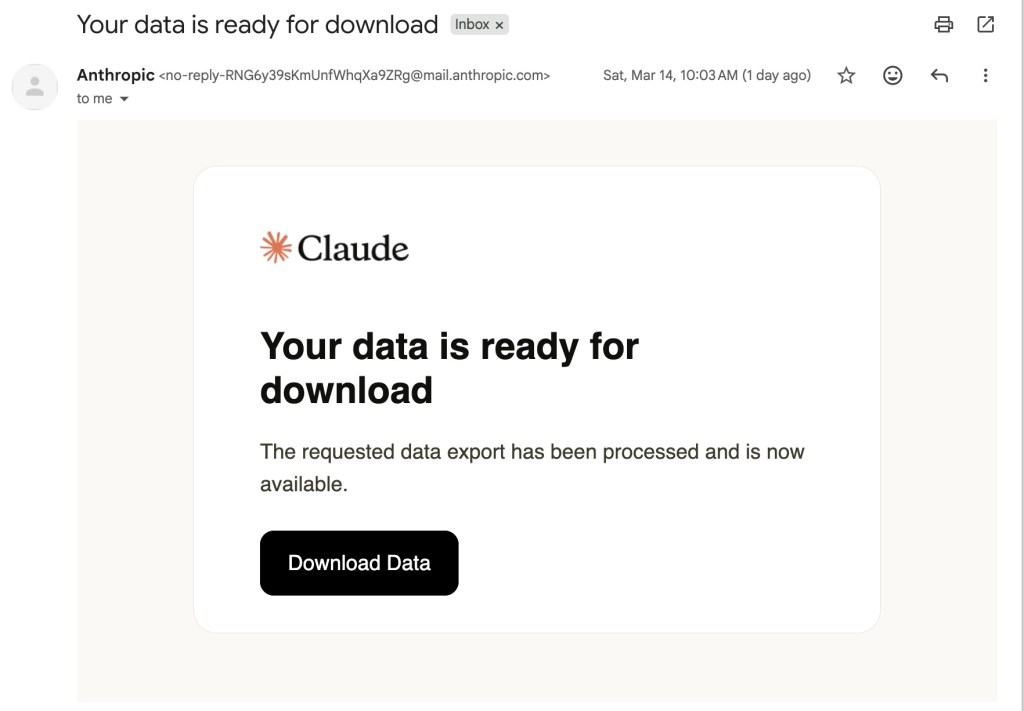
Step 2. Wait for the email to arrive.
For Claude, I have received an email with the link within hours. However, I have only chatted with Claude for the past 2 weeks, so there was much less content to export.
Recently, ChatGPT has sent an email quickly saying the export has started. Depending on how many chats you are exporting and how long they are, it may take some time. According to ChatGPT Help as of March 2026:
“Data exports can take up to 7 days to arrive. Check your inbox, spam, and promotions folders for an email from noreply@openai.com. Only the most recent export request will be fulfilled; any earlier requests are canceled.”
If I have not received an email with my download link from ChatGPT within 1-2 days, I will send another request. Usually it will appear within a day.
Step 3. Set up Obsidian and Install the Nexus AI Plugin
Download and install Obsidian and setup your first vault. Full instructions can be found on Obsidian Help or from watching this introductory tutorial from Nick Milo or this intro tutorial from Nicole van der Hoeven.
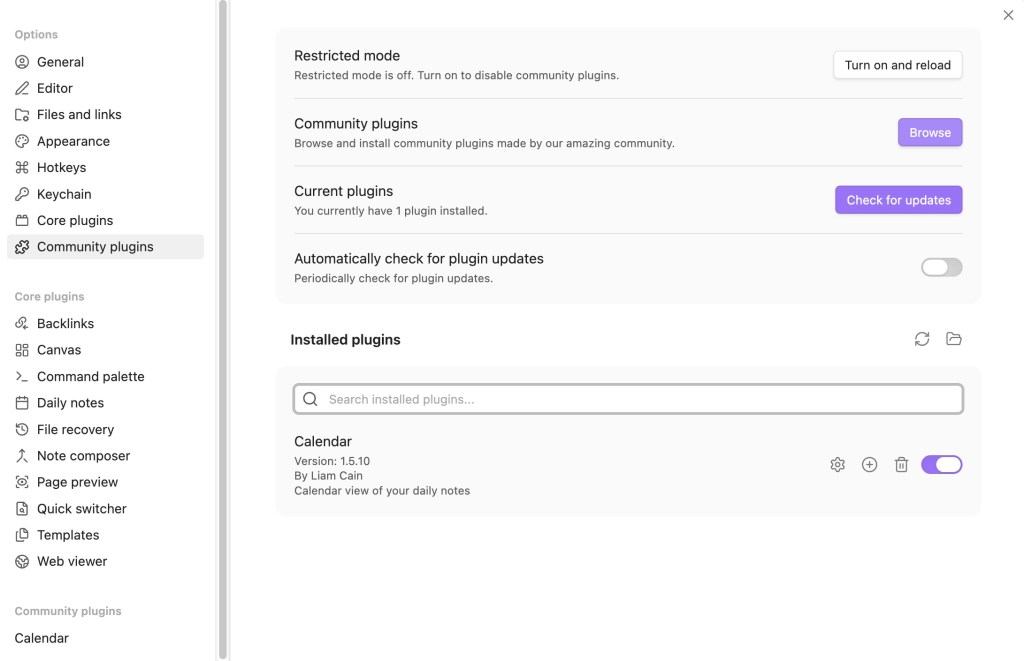
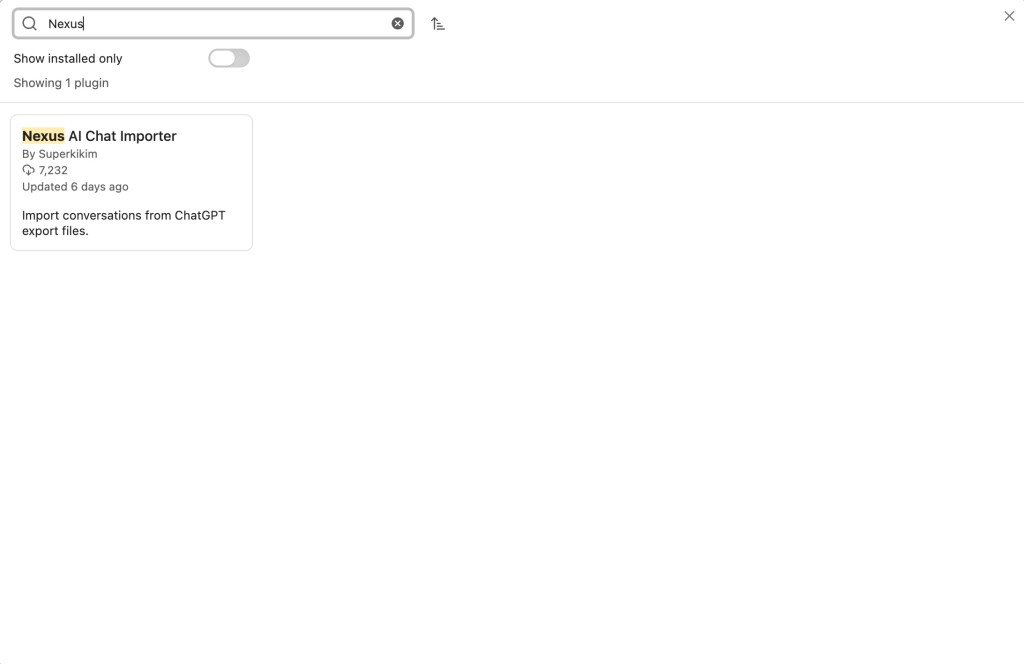
Once you have your vault setup, go to Settings, turn on Community Plugins if necessary, click Browse, and search for Nexus AI Chat Importer. Download and enable the plugin.
Step 4. Complete Your First Import
Once installed, you can access Nexus AI via two methods. The first is on the sidebar. It looks like a chat icon with a + symbol. See image below.
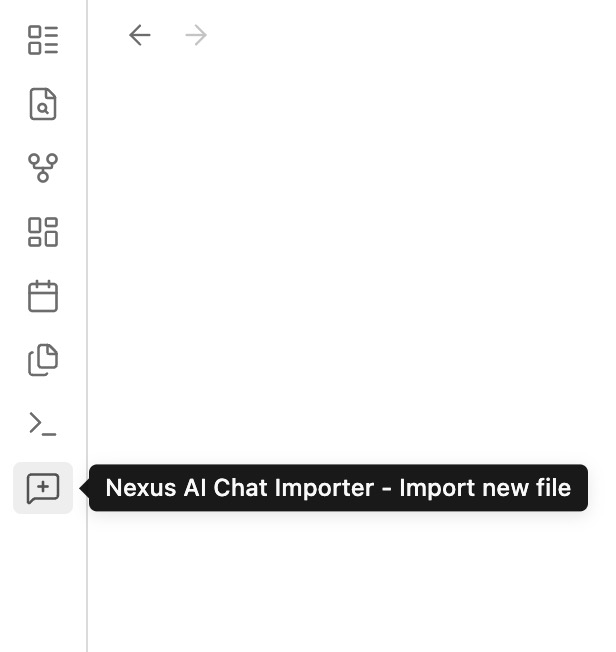
The second method is to use the command palette. This is accessible either by using the keyboard shortcut cmd+P or by clicking the icon above the Nexus Icon that looks like this >_
Once the command palette is open, click “Nexus AI Chat Importer: Import AI conversations”.
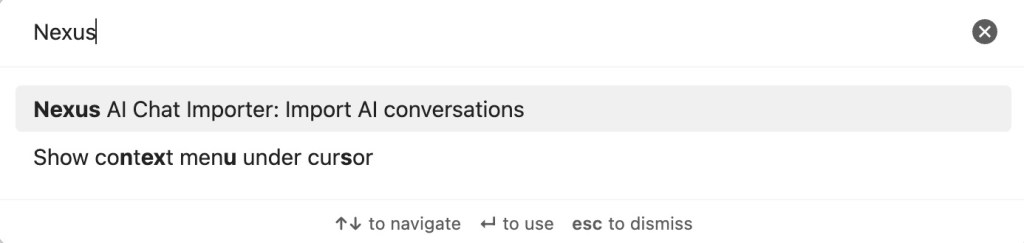
After access via the sidebar or command palette, you will be asked to Select the Archive Provider. Here you can choose to import from ChatGPT, Claude, or Le Chat* (see footnote).
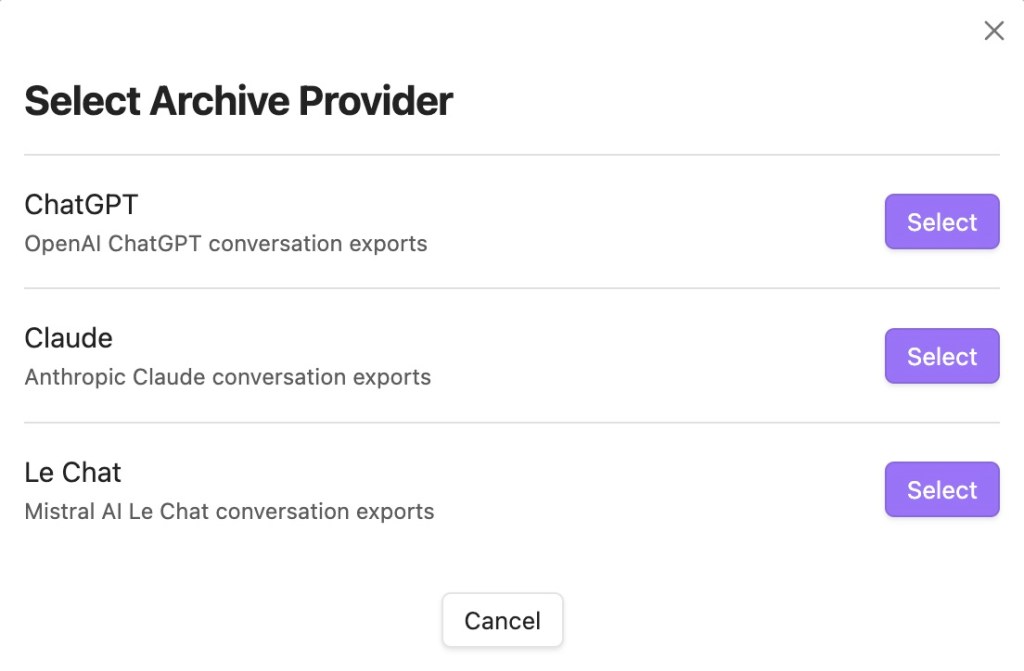
Choose either ChatGPT or Claude. Then drag and drop your zip file that you downloaded earlier from your email.
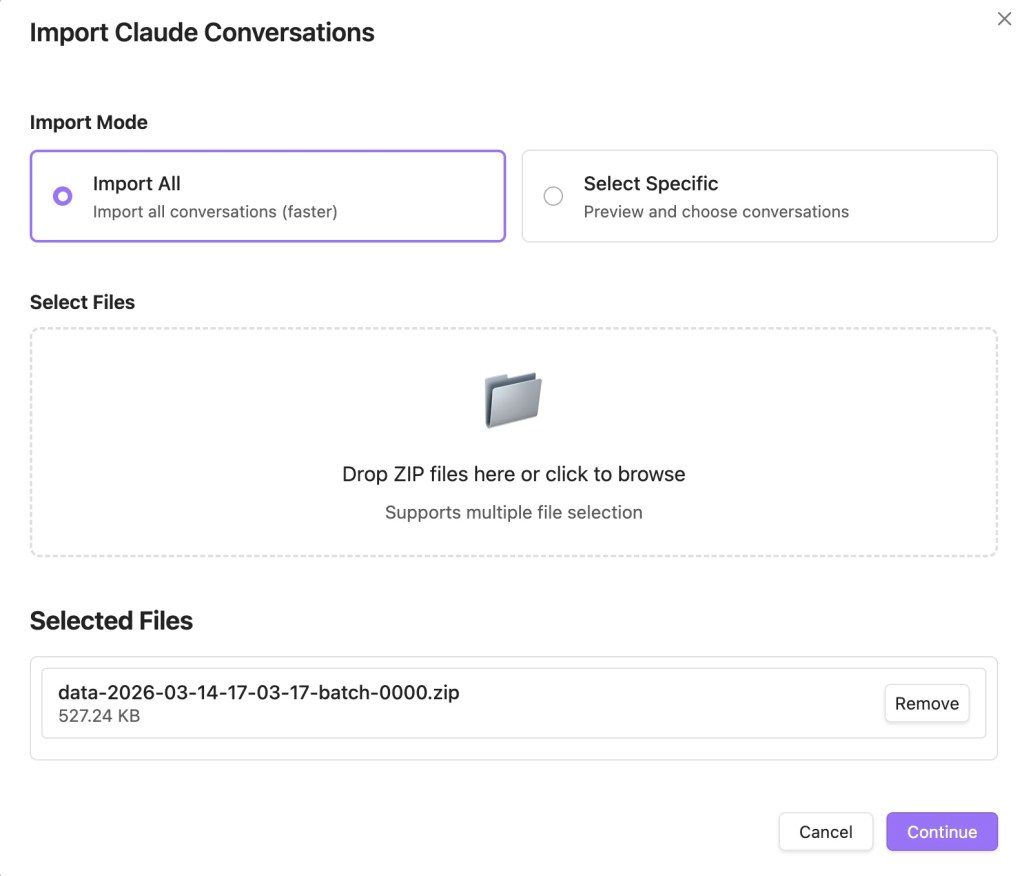
When you click continue, the import will complete automatically and you will receive the following screen.
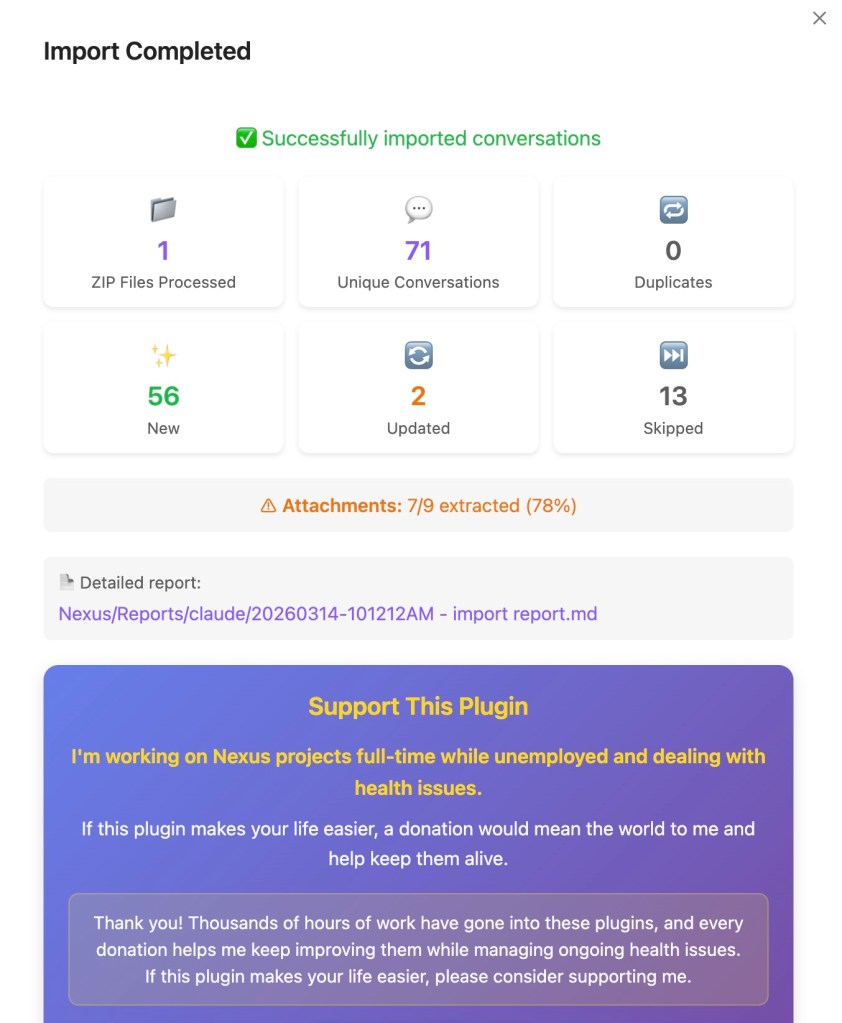
This was my second import from Claude. You can see in the image that 2 files were updated from a previous import because I didn’t fully delete the files from the first import.
Step 5. Look through your chats
The plugin generates a separate note in the reports folder that explains what has been imported. See image below.
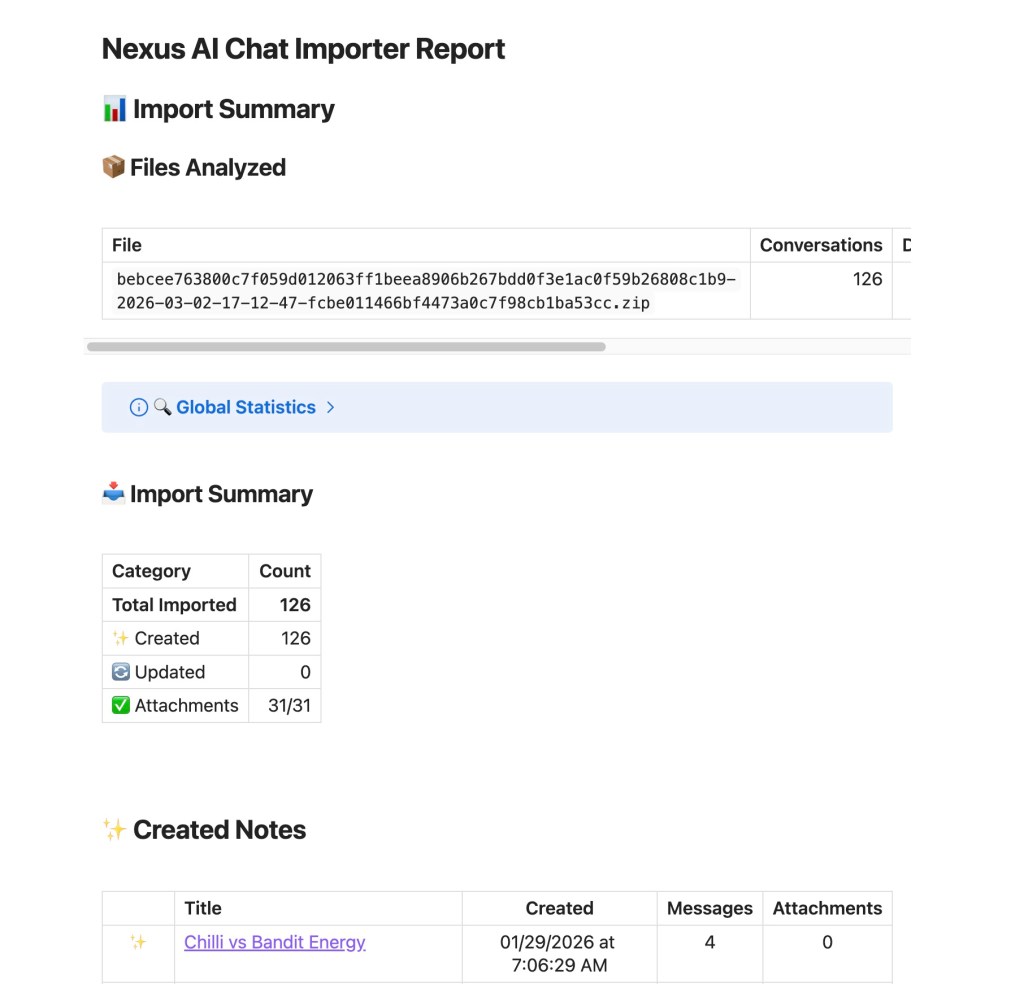
You can scroll through the list of all of the chats. They will also appear in the sidebar in your vault organized in folders by year and month.
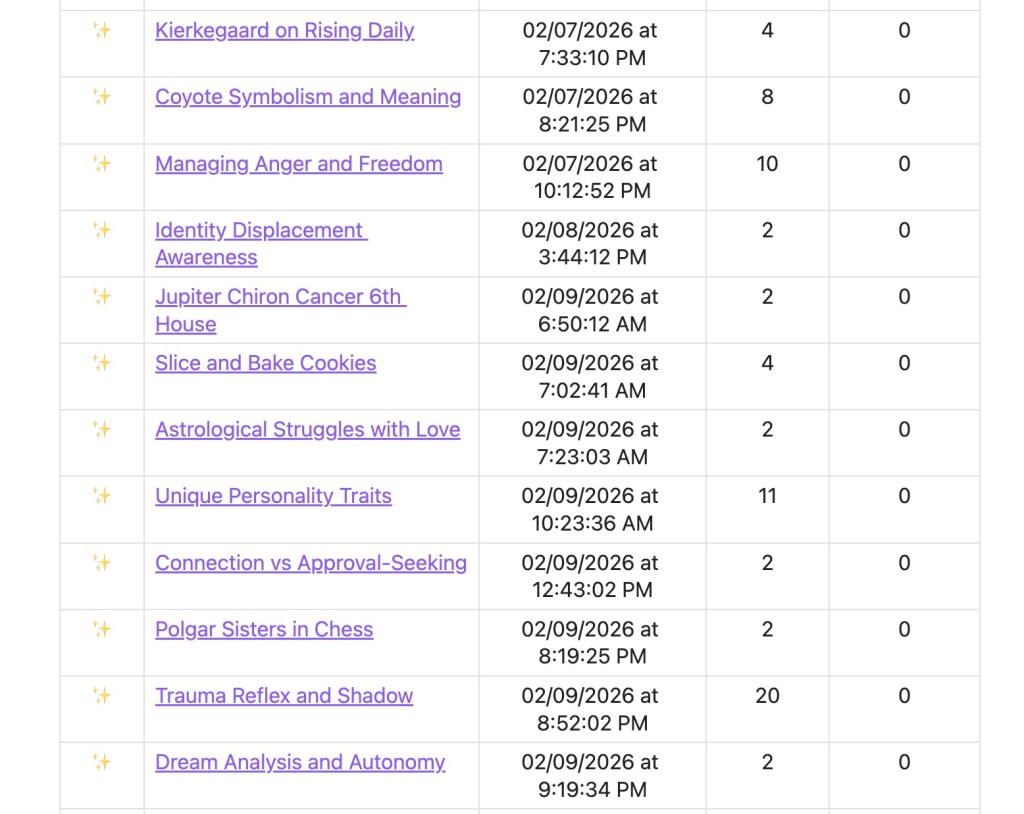
Thanks to Obsidians cool Page Preview core plugin (that is turned on by default), you can preview the note before clicking on it. See image below.
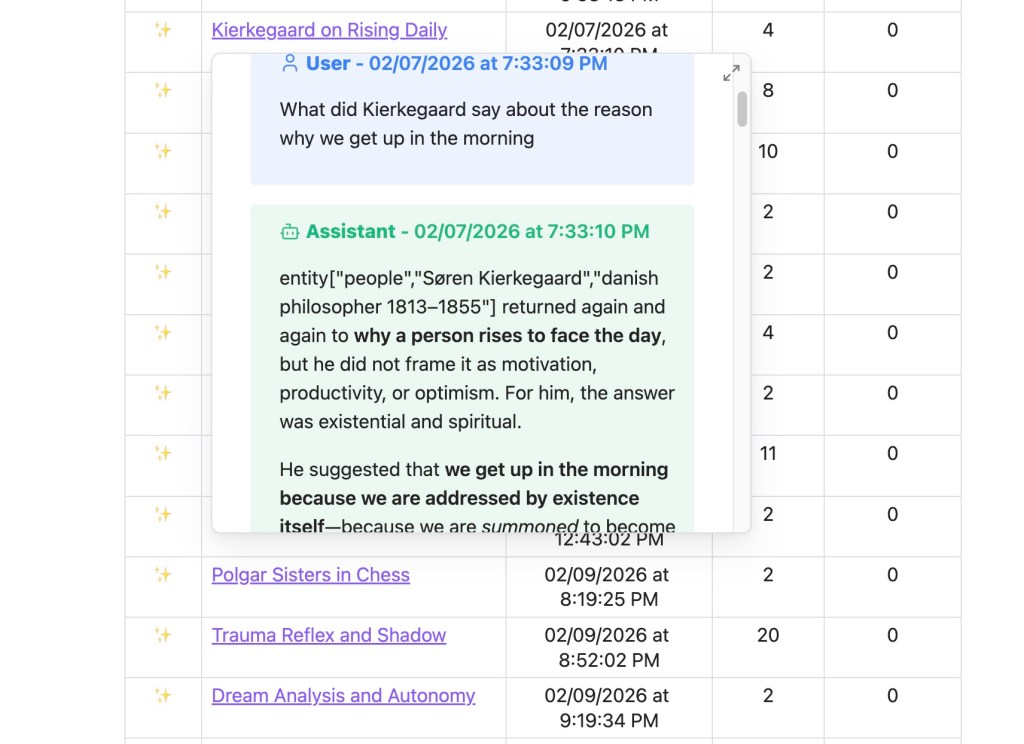
You can then click on the link and it will take you to the note with you conversation (see below).
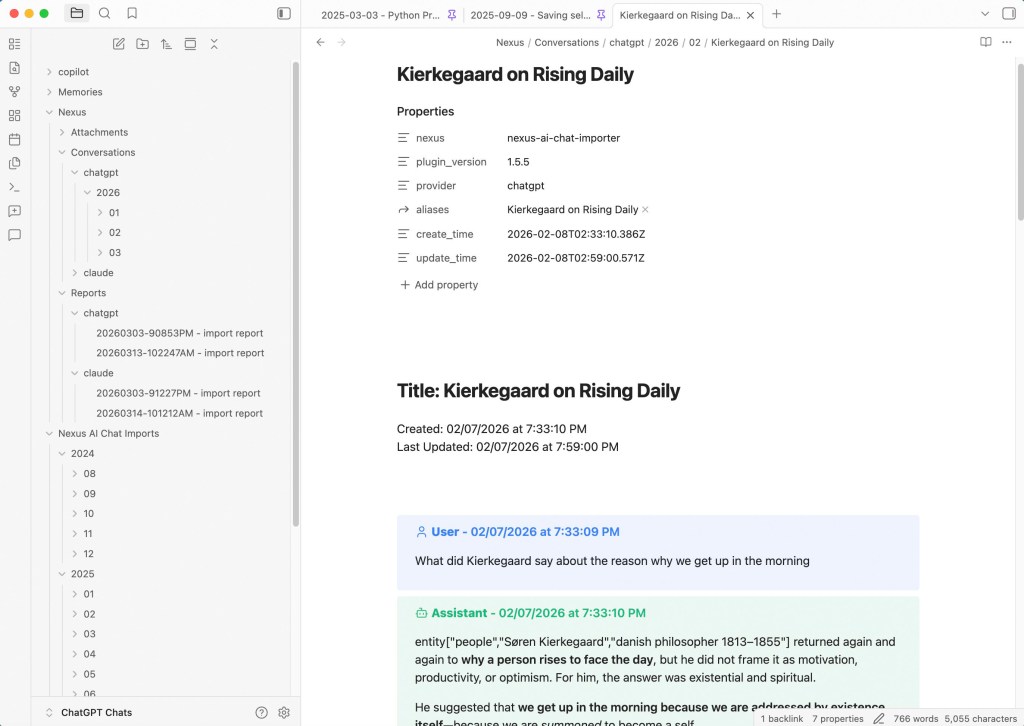
I recently updated the Nexus Plugin (which added the new colorful callout boxes of blue for ChatGPT and green for user). That’s why there are two folders for Nexus.
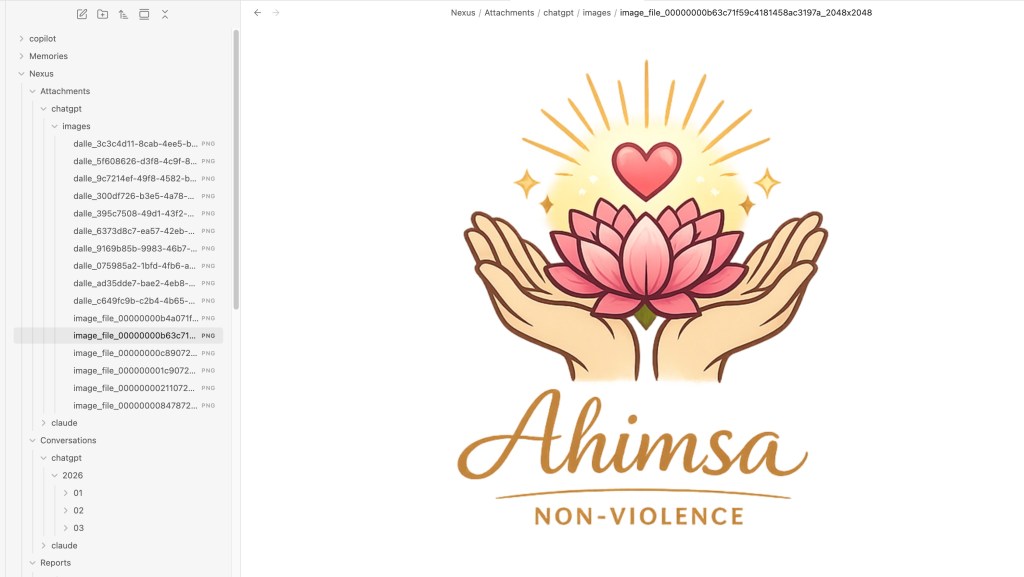
Another great update to the Nexus Plugin was the addition of “Attachments” which downloads images generated with DALL-E as well as images uploaded to the chat.
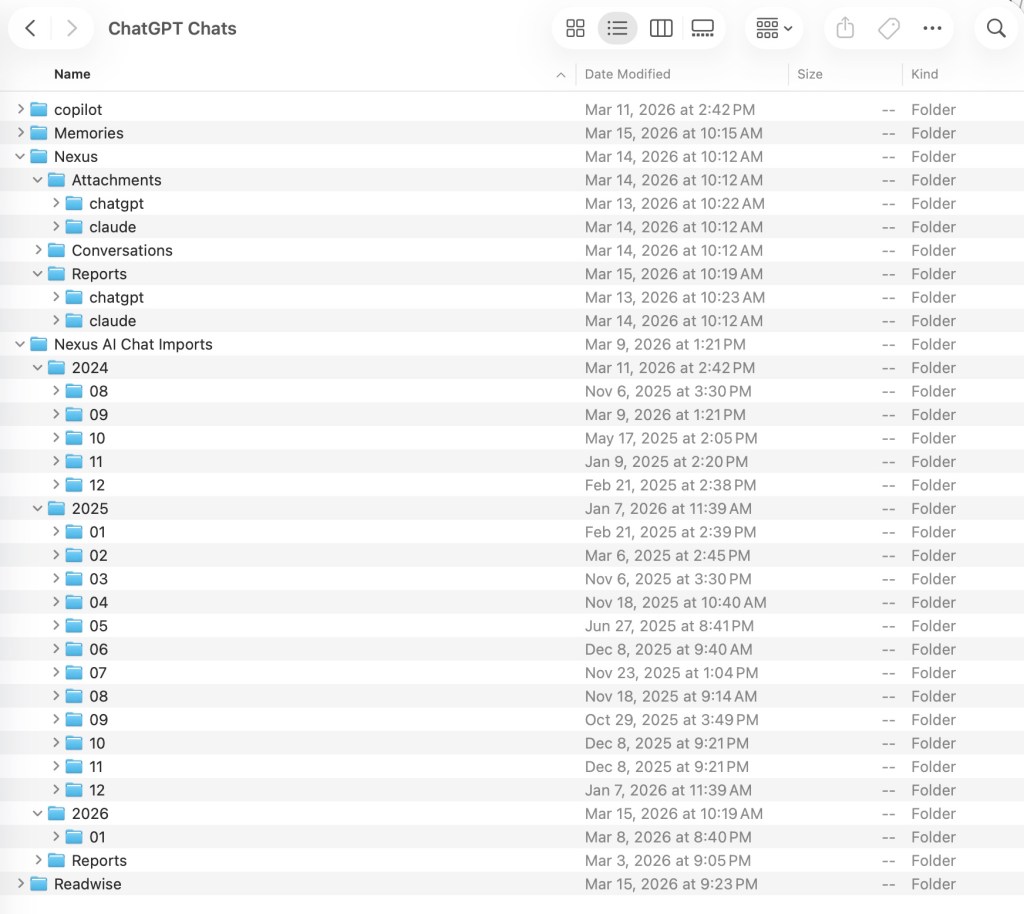
In the image below, you can see all the same folders are available through Finder as in the image above on the sidebar.
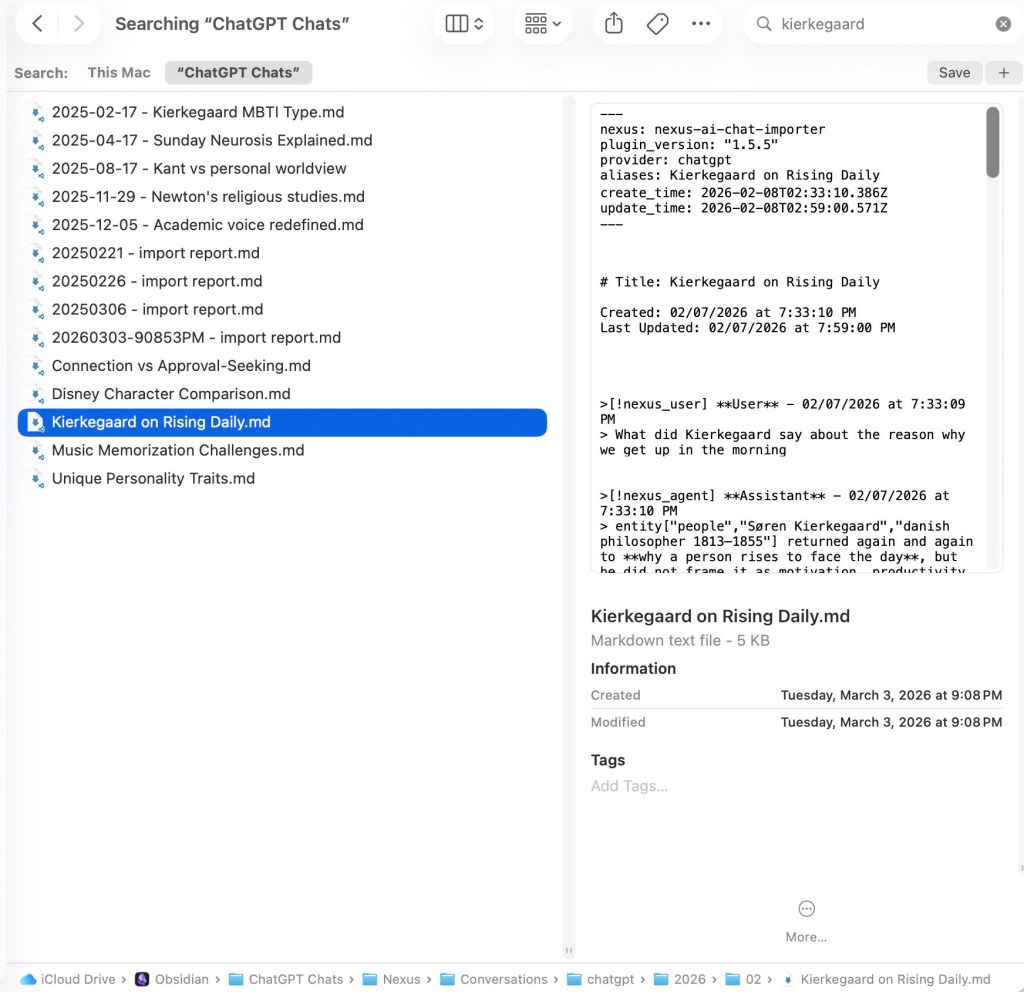
I find the native search function within Obsidian to be a bit slow sometimes. Searching for a specific file can be much easier using Finder on a Mac. (See image below).
You can see that I can access the same info that is in my note in my Obsidian vault in a simple text format using a text editor.
I hope this tutorial was helpful. It was exciting to be able to collate my knowledge on this topic and share what tips and tricks have worked for me over the past couple years.
Bonus section – About Le Chat
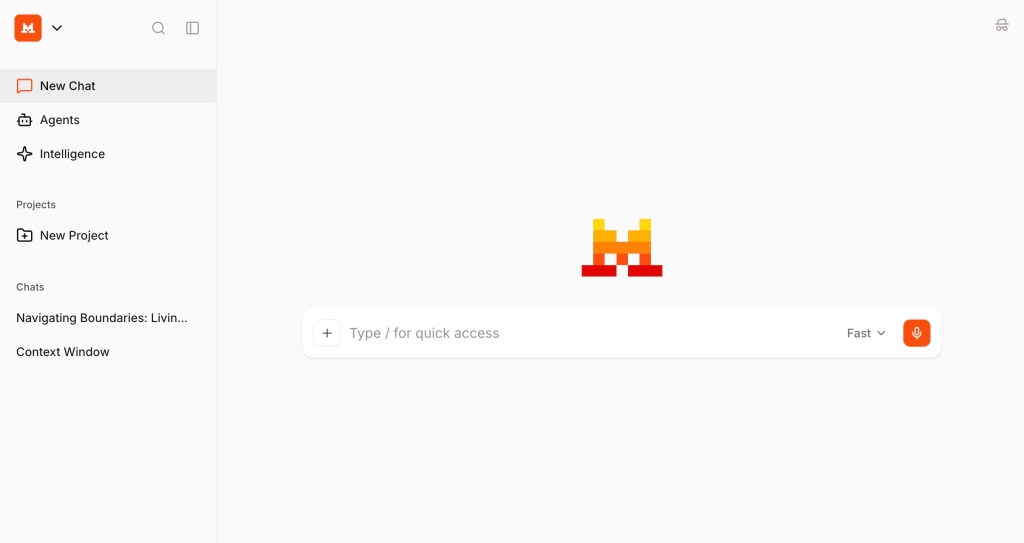
*Le Chat is an AI service from France that aims to serve as a European alternate to the US and Chinese dominated world of artificial intelligence. When I asked Le Chat if that was accurate, it responded as follows:
My response is a bit different. I am Le Chat, an Al assistant created by Mistral Al. Mistral Al is a cutting-edge Al lab based in France, and its mission is to develop advanced, open, and responsible Al technologies. While it’s true that Mistral Al is European and aims to contribute to a diverse and competitive global Al landscape, my purpose is to assist users like you-wherever you are-with accurate, helpful, and engaging information.
Reading this response made me feel that my original description of Le Chat was a bit cavalier or insensitive. So I thought it best to include the formal definition as well.
Personally, discovering Le Chat made me happy and intrigued. It is good to know that there are alternative AI providers to turn to if you are in need or are interested.
 Armadillo Amore